Reference
Element reference
Every building block in GigCharts, with its options and what it's good for. Some elements do more than one job — this is where to look them up.
New here? Start with the step-by-step guide — it walks one real song from blank page to finished PDF and introduces the common elements in order. This page is the encyclopedia: every element, on its own, with its full set of options.
Getting words & chords in
How a song gets into GigCharts, and the controls that shift every chord at once.
Paste & import
Drop in a song as plain text — two chord styles understood.
Start a new song and paste (or type) the words. GigCharts reads the two ways people write chords:
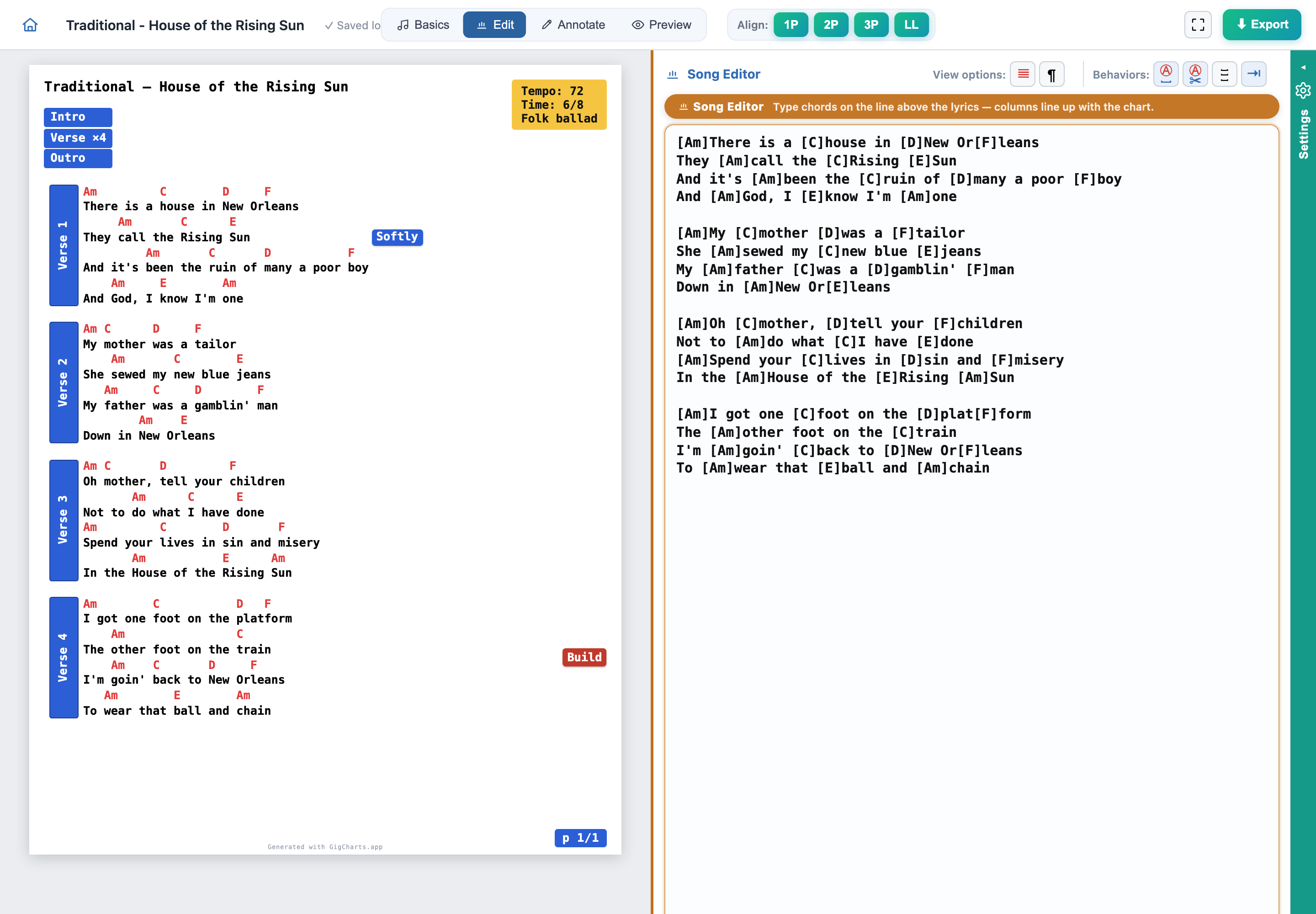
Chords-above-lyrics — a line of chord names sitting over the line of words, spaced with the syllables. And inline ChordPro — chords in square brackets inside the words, like [Am]There is a [C]house. You can mix files freely; the editor understands both and lines them up when it renders.
Options & settings
- Paste a whole song at once, or build it line by line.
- Blank lines separate stanzas (a blank line = a break between verses).
- ChordPro directives in { } are recognised on import (title, key, capo, comments…).
Use it for…
- Bringing a chart over from a text file, another app, or a website.
- Typing a song from scratch in whichever notation you already think in.
ChordPro directives
Curly-brace tags that set metadata and mark structure.
If your source uses ChordPro {directives} — {title:}, {key:}, {capo:}, {start_of_chorus}, {comment:} and friends — GigCharts reads them on import: metadata fills the chart's fields, section blocks become section spines, and comments become cues. You don't have to type any of them — every one also has a control in the UI.
For the complete list — every recognised property and section marker, which are standard ChordPro versus GigCharts extras, and which are read but not shown on the chart — see the Import reference.
Use it for…
- Importing charts that already use the ChordPro standard.
- Round-tripping: what you set in the UI can be exported back out as ChordPro.
Transpose
Move every chord up or down by semitones — words untouched.
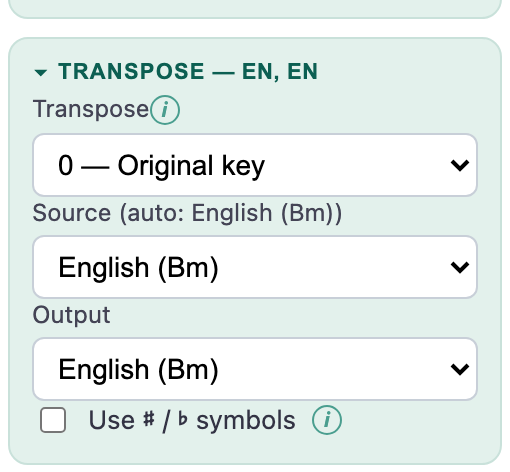
Transpose shifts all the chords in the song by a chosen number of semitones. The lyrics stay exactly where they are; only the chord names change. Use it to move a song into a key that suits the singer.
Options & settings
- Step up or down one semitone at a time.
- Choose how sharps/flats are spelled to match the key you're aiming for.
Use it for…
- Fitting a song to a vocalist's comfortable range.
- Matching a chart to how the band actually plays it.
Key & capo
State the written key and where the capo goes.
Set the song's key so it's stated clearly on the chart, and set a capo position if the player uses one. Capo and transpose work together: transpose changes the printed chords, the capo tells the player where to clamp — GigCharts keeps the relationship honest so the shapes on the page are the ones they'll actually finger.
Use it for…
- Making the key obvious at a glance on the stand.
- Printing easy open-chord shapes while sounding in a harder key.
Structure & arrangement
The bones of the song — where sections start and how the map reads.
Section
A labelled spine down the edge marking Verse, Chorus, Bridge…
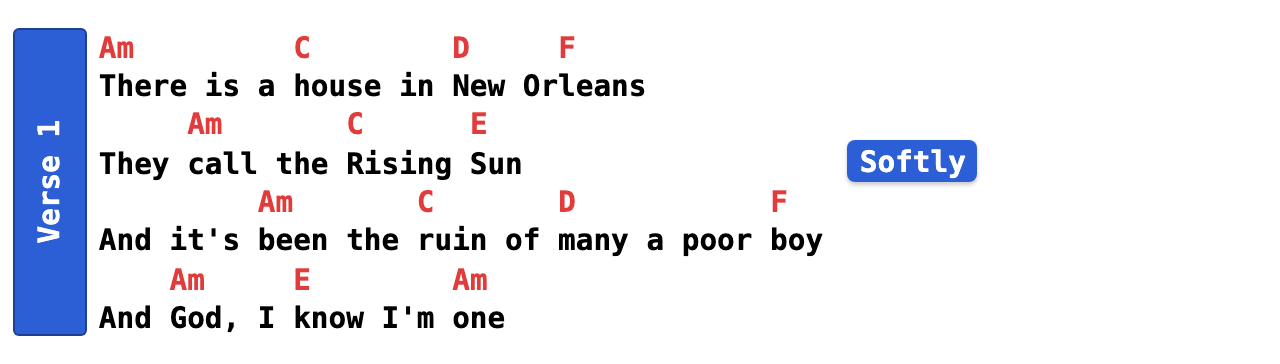
A section marks a stretch of the song — Intro, Verse, Chorus, Bridge, Outro — with a coloured spine and a label running alongside it. It groups the lines it covers so the eye can find the chorus instantly, even across a busy page.
Options & settings
- Free-text label (Verse 1, Chorus, Bridge, Solo…).
- Its own colour, so recurring parts read at a glance.
- Spans the stanzas you assign it.
Use it for…
- Making the form of the song scannable during a gig.
- Colour-coding repeats so 'Chorus' always looks the same.
Road-map (arrangement)
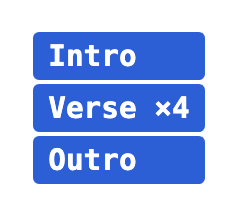
A compact running order of the whole song as stacked bars.
The road-map is an arrangement list: a stack of little coloured bars, one per part, in the order you actually play them — for House of the Rising Sun that's simply Intro · Verse ×4 · Outro. It sits in a gap on the page and gives the band the shape of the song without reading every line.
Options & settings
- Order and repeat the bars however the arrangement runs.
- Per-bar colour (line it up with your section colours).
- Align and size the track; it reserves the right amount of room in the gap.
Use it for…
- A one-glance 'what comes next' for the whole band.
- Communicating an arrangement that differs from the printed verse order.
Markers
An ordered list of labelled bars stacked down the margin.
A marker group is an ordered list of coloured bars — the same building block as the road-map, but standing as vertical spines side by side in a page gutter. Each bar carries a label (and an optional ×N), so you can run an arrangement, a set of parts, or a line of reference points down the edge of the page.
Options & settings
- An ordered list of bars, each with its own label, colour and optional ×N repeat.
- Sits in the left or right gutter (or inline); pick the reading direction for the vertical labels.
Use it for…
- A compact arrangement or parts list running down the margin.
- Naming who takes a part, or flagging landmarks the band calls out.
Page break
Force the split between pages exactly where you want it.
Normally GigCharts paginates for you and is careful never to split a line that matters. When you want control, drop a page break to decide precisely where page one ends — so a turn lands at a rest, not mid-chorus.
Use it for…
- Putting the page turn somewhere your hands are free.
- Keeping a section whole on one page.
Performance annotations
Notes for the moment of playing — cues, repeats, and who sings what.
Cue
A little chip with a performance note, placed where you need it.
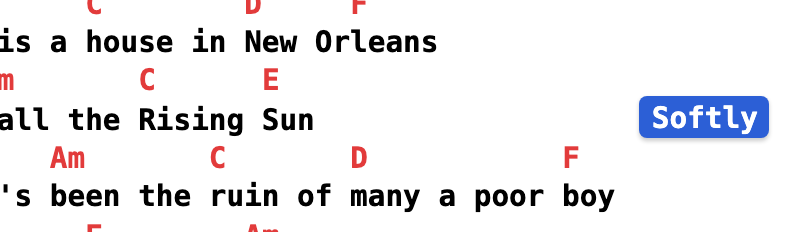
A cue is a small labelled chip — 'Softer', 'Build', 'A cappella', 'Watch me' — that you pin to a stanza, a line, or the gap between stanzas. It carries the human instructions a plain chord chart can't.
Cues are the most flexible element: the same chip can sit above the text, beside it, hard to the left or right margin, or inline right after the words, and it stays clamped inside the page no matter how long the label.
Options & settings
- Placement: above, inline/beside the text, hard left, or hard right.
- Attach to a whole stanza, a single line, or a gap between stanzas.
- Free-text label — as short or long as you like; it never overflows the edge.
Use it for…
- Dynamics and feel ('quiet', 'lift', 'half-time').
- Stage directions ('band out', 'lead vocal', 'repeat to fade').
- Anything the dots don't say but the player needs to know.
Repeat
Show that a part plays more than once, without retyping it.
A repeat marks a stanza or section to be played again — an ×2, a repeat bracket — so you write the words once and still make the count clear.
Use it for…
- Choruses and riffs that run twice.
- Keeping the page short by not duplicating lyrics.
Chorus reference
Point back to the chorus instead of reprinting it.
Rather than printing the chorus a third and fourth time, drop a chorus reference where it recurs. The chart stays compact and the singer still knows exactly what happens there.
Use it for…
- Songs where the same chorus returns several times.
- Fitting a long song onto fewer pages.
Voice (colour)
Recolour lyric lines by who sings them.
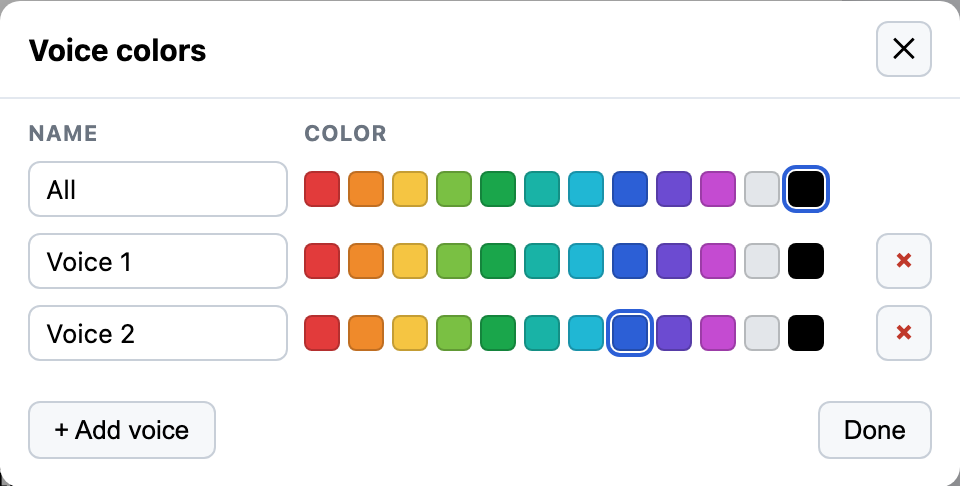
A voice tags lines with a singer's colour — lead, harmony, everyone — and recolours the words accordingly. It draws no widget; it just tints the text, so a duet or a call-and-response reads at a glance.
The set of voices (the roster) and their colours are the song's own; assign lines to a voice and they take that colour.
Options & settings
- Define a roster of voices, each with a colour.
- Assign any line or stanza to a voice.
Use it for…
- Duets and call-and-response ('you take this line, I take that').
- Marking harmony vs. lead parts.
Header & page chrome
The furniture around the song — capo badge, QR, footer, info box.
Capo badge
A clear capo marker in the header, positionable to taste.
When a song uses a capo, GigCharts shows it as a badge in the header. Right-click it to move it — GigCharts reserves the room so nothing collides with the title or the first line.
Use it for…
- Making the capo impossible to miss on stage.
QR code
A scannable link on the chart — to a recording or the source.
Add a QR code to the chart and point it at whatever helps: a reference recording, a video, the original source. It renders as part of the page and exports into the PDF. Right-click to reposition.
Use it for…
- Linking the printed chart to 'how it actually goes'.
- Sharing a rehearsal track from the stand.
Info box
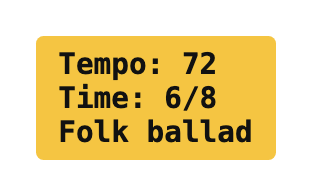
A tidy box of song facts — key, tempo, time, capo.
The info box gathers the song's facts — key, tempo, time signature, capo and so on — into one neat block on the page. What it shows and how it looks is configurable, and the same controls set your per-user defaults for new songs.
Options & settings
- Choose which facts appear.
- Its placement and styling.
- Set once as a default so every new song starts the same way.
Use it for…
- Giving the band the count-in facts before the first line.
- A consistent 'song header' look across your whole book.
Look & layout
How the whole page feels, and how it fits the paper.
Colour themes
One preset to recolour every element on the chart.
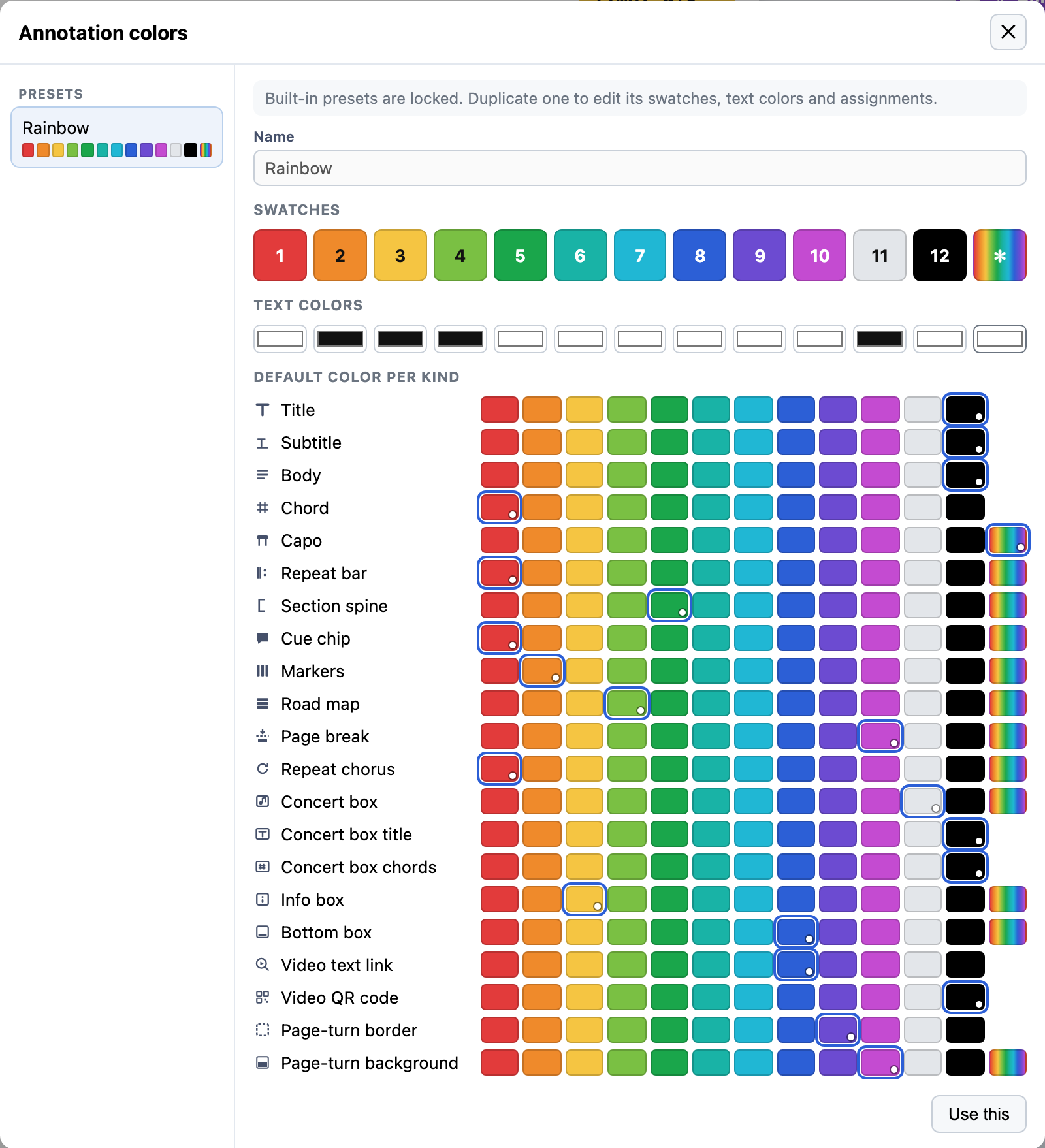
Open Manage annotation colors… from the Annotate tab and pick a preset — Rainbow, Pastel, Muted or Grayscale. Each one is a coordinated palette that sets the colour of every element on the page at once — chords, section spines, cues, road-map, info box and the rest — so your whole book can share one calm, consistent look.
Want to fine-tune? Duplicate a preset and you can edit each swatch, the text colour, and the default colour for every kind of element individually.
Options & settings
- Built-in presets: Rainbow, Pastel, Muted, Grayscale.
- A default colour per element kind (chord, section, cue, road-map, info box…).
- Duplicate a preset to edit its swatches and assignments.
Use it for…
- Giving a mixed set of charts a single house style.
- High-contrast or muted looks for different stages.
Page size & fit
Paper size, margins, and fitting the song to the page.
Choose the page size (A4, Letter, tablet-friendly sizes) and let GigCharts fit the song to it. It sizes the type to fill the page comfortably and paginates so a line that matters never gets split across a turn.
Options & settings
- Standard paper and tablet-oriented page sizes.
- Automatic fit that fills the page without crowding.
Use it for…
- Printing for a binder vs. a tablet stand.
- Getting a song onto as few pages as possible, cleanly.
Page-turn preview
See what the next page starts with, before you turn.
For multi-page songs, the page-turn preview shows a band mirroring the first lines of the next page at the bottom of the current one — so a player reading ahead knows what's coming and turns at the right beat. It respects voice colours and reserves the space it needs.
Use it for…
- Two-page songs where the turn lands mid-phrase.
- Giving the reader a running start into page two.
Preview zoom
Zoom the on-screen preview without changing the print.
Zoom the preview to check detail or step back for the whole page. It only affects what you see on screen — the exported PDF is always sized to the real page.
Use it for…
- Proofreading chord placement up close.
- Checking the whole-page balance from a distance.
Saving & output
Getting the chart off the screen and into your set.
PDF export
A print-perfect PDF, built entirely in your browser.
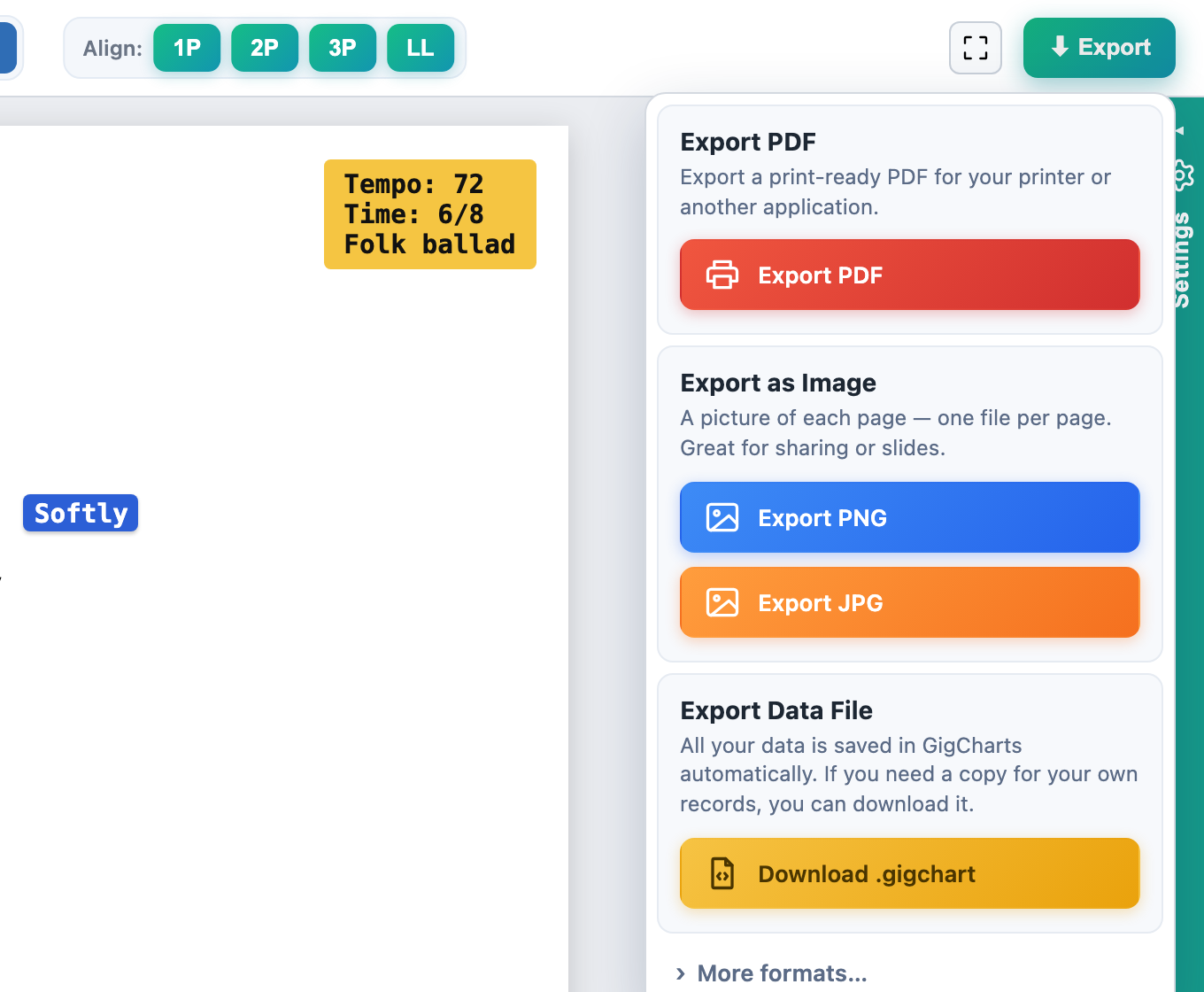
Export produces a clean PDF that matches the preview exactly, generated on your own device — nothing is uploaded. It opens in any PDF reader and in the tablet apps musicians use (MobileSheets, b.beat).
What you see is what you get: every render-affecting setting is carried through to the PDF, so the preview and the print are the same chart.
Options & settings
- Export the current song to PDF.
- A 'More formats…' disclosure for additional export options.
Use it for…
- Printing for the stand or the binder.
- Loading into a tablet set-list app.
.gigchart file
Save a song as a portable file you own.
Beyond the automatic browser save, you can save a song as a .gigchart file — a human-readable JSON document with everything in it. Open it later, back it up, or move it to another machine.
Use it for…
- Backing up a chart outside the browser.
- Moving a song between computers or sharing it.
Library & autosave
Every song saved as you work, organised in one place.
There's no Save button to remember — songs autosave continuously to your library as you type. The library lists everything by name with its last-modified time; open, rename, or start a new song from there.
Use it for…
- Keeping your whole book in one searchable place.
- Never losing work to a forgotten save.
That's the toolkit. The best way to learn it is to use it — open the app and paste a song, or follow the guide for a guided first chart.